

Keep in mind the following:
- Once you have linked a cart to your account you can't unlink it.
- You can only link your carts to one CCR account.
- You don't have to link your carts to cut from CCR.
Carts that you have already linked to your Gypsy cannot be linked to CCR yet. That option is still to come. PC are working on a way for us to connect our Gypsy to our computer and have our carts automatically linked to both.Gypsy linking is now available! Go here for details: http://www.cricut.com/home/support/gypsy-linking/
- Your carts don't have to be registered to enable you to link them.
- Your carts don't have to be bookmarked for you to link them.
- If you purchase a Digital cartridge from Cricut.com it will automatically be linked to your account.
- If you're using the Imagine or the E2 (and I presume the Mini) make sure it is up to date by connecting it to your computer, powering it on and opening Cricut Sync. I had trouble linking a cart using my E2. Once I updated it through Cricut Sync I was able to link the cart. (It did still take a few "Try Again's" and removing and inserting the cart but it eventually linked. (Make sure you cancel right out of the cut so you are back at the mat screen then try linking again.)
again by cancelling right out of the cut and trying again it linked. The firmware
version on my Expression s 2.43 and it cuts with CCR. (PC removed the
requirement to have the later version of the firmware on the Expression a
few updates ago.)
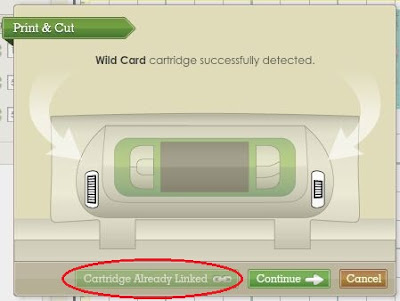

- If you see this message when you are linking a cart, it means it has already been linked to a Gypsy and can't be linked to CCR yet, or it has been linked to another CCR account.
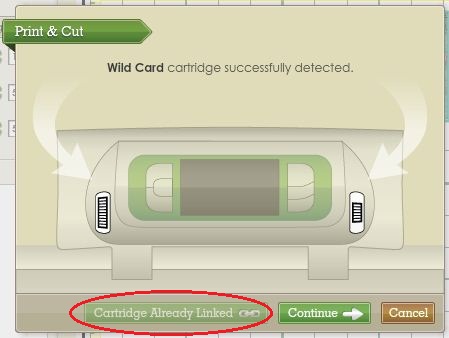
Linking instructions:
- Insert the cartridge you wish to link into your Cricut.
- Highlight the cart you wish to link from the All Cartridges library then click on the Link button

- Click on the Cricut you are using, then click the Select Device button (or double click the device name)

- Once your cartridge is detected, click the Link Cartridge button.

- You will need to accept the End User License Agreement to proceed. If you don't wish to proceed press the Cancel button. Your cartridge won't be linked and you'll be returned to the main CCR screen. Remember, you can still cut with your cartridge without linking it!
If you do wish to proceed, click the I Accept, Link Cartridge button

- The linking process will begin
- Once the linking is complete you will see this. Press the Okay button

- You will be returned to the main CCR screen. To link another cartridge repeat from step 1.


Your cart is now linked to your Cricut account and you won't have to insert it into your Cricut again to cut when using your CCR account!
You will still need them if you're cutting directly from your Cricut, so don't give them away or sell them! (That's what you were agreeing to in step 5 above....)
Once you have linked your carts using CCR they will automatically be also linked to your Gypsy the next time you sync it using Cricut Sync. (This only applies once the cartridges have been added to the Gypsy cartridge library after each Hello Thursday content update.)
Some Digital carts (eg. the single Imagine images) won't be able to be linked to a Gypsy.



 Posts
Posts


