Thursday, May 17, 2018

Reminder - Cricut Craft Room is closing

In case you didn't receive the memo, Cricut Craft Room (CCR) is closing on July 15, 2018.  CCR was built using Adobe Flash which Adobe no longer supports.

That means if you have a Cricut Personal, Cricut Create/Cake, Expression/Cake, Imagine, E2 or Cricut Mini they will no longer be able to be used online with Cricut software.

All of the above, with the exception of the Cricut Mini, can be used as a standalone machine using the physical cartridges.

Cricut are offering legacy machine owners who have not yet upgraded to an Explore $75 off an Explore or Explore bundle from Cricut.com.

To qualify you must be an active Cricut Craft Room user and you must have created your Cricut Craft Room account before April 28.  If you did qualify you should have received an email from Cricut.

There is a lot more information available here: http://inspiration.cricut.com/cricut-craft-room-closing/

For those who own the Personal, Create or Expression (plus the Cake versions) and own Sure Cuts a Lot V2, you will still be able to use your machines with that software. The same applies to the older version of Make the Cut.

Sure Cuts a Lot 4 or Make the Cut V4 does not work with any of the Cricuts.



Sunday, May 18, 2014

Free CCR Box card file

I am sharing a free Box Card cutting file that works with CCR, the Gypsy and Design Studio (the old software - not Design Space) over at my new blog.


Come on over and check it out! http://thenon-craftycrafter.blogspot.com.au/2014/05/box-card-file-now-available-for-ccr-and.html


Monday, April 21, 2014

Free Box Card cut file for Design Space

For those of you with the Cricut Explore, I am sharing a Design Space Box Card cut file over on my new blog. It's a Box Card with a twist!

If you're interested head over to http://thenon-craftycrafter.blogspot.com.au/2014/04/cricut-free-box-card-cut-file-for-you.html

All you have to do is become a follower over there and leave a comment on the post with your email address. Once I've verified you're a follower I'll email you the link to the file. :)

Oh, and it's free!!!


Thursday, April 17, 2014

It's a Pinterest party over at the Non-Crafty Crafter!


Hi everyone...

Feel like some Pinspiration???  Come on over to my Non-Crafty Crafter blog and join the Pinterest party! It's running all week and should be a lot of fun.

What's a Pinterest party you ask??? It's simple.... you find a craft project on Pinterest and use it as inspiration to make your project.

Here's the link... would love you to join in!


Here's the card I made.


Tuesday, March 11, 2014

Looking for the Cricut Cartridge list and Cricut Font list?

You'll find the updated lists on my new blog:


The complete guide to Cricut Fonts:


Full list of carts - physical and digital (including links to handbooks): http://thenon-craftycrafter.blogspot.com.au/2014/03/cricut-full-list-of-cricut-cartridges.html


List of carts with fonts - with samples of every font: http://thenon-craftycrafter.blogspot.com.au/2013/02/cricut-carts-containing-fonts-with.html


Don't forget to follow me over there by clicking the "Join this Site"button.


Monday, April 29, 2013

Carts with Fonts list

My Cricut Fonts list can now be found on my new blog here:

http://thenon-craftycrafter.blogspot.com.au/2013/02/cricut-carts-containing-fonts-with.html

For updates please follow/subscribe over there. :)


Monday, February 11, 2013

A quick CCR cutting tip

Here's something that I regularly do when I have a mat full of objects and I only want to cut some of them...

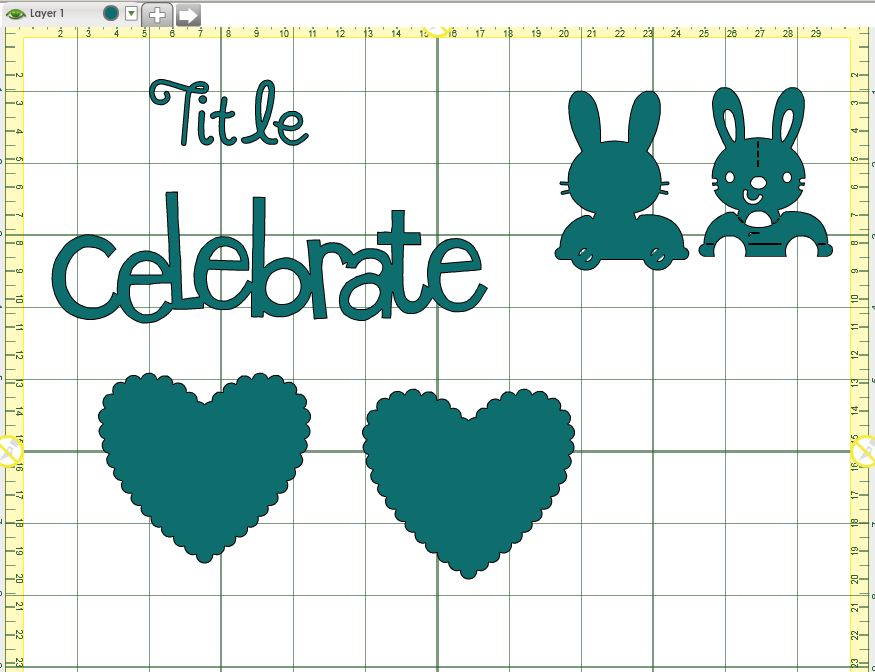
Let's say my mat looks like this:


There's shapes and text from several carts on the mat. But say I only want to cut "celebrate" and one of the hearts....

... I could create another mat layer in my project and cut and paste the other images to the new mat.

... Or I could select the ones I don't want to cut and delete them.

Or..... what I do is move the images I don't want to cut away from the cutting area of the mat.

You may know by now that any images that go outside the yellow border around the mat won't cut. While that's annoying when I want to cut a large image in sections I can at least use that to my advantage.

Click the Zoom Out button on the toolbar so that you can see the white area to the right of the mat.


Now drag the images that you don't want to cut over to the white area beside the mat. Move your other images to where you want them to cut. (You don't even have to move them right off the mat. If even part of the image goes over the yellow line it won't cut.)


Click Cut/Go to send your project to the Cricut.

After it has cut the two shapes that are on the mat you will see this message:


Press the OK button to return to the cutting screen then press Done. Easy right????

If you want to cut some of the other shapes, just move them back onto the mat and move the others off if necessary. Then cut your project again.

There's no problem saving your project with the images off the mat. Just remember next time you open it your mat will probably be zoomed in and you may not see those images until you zoom out again.